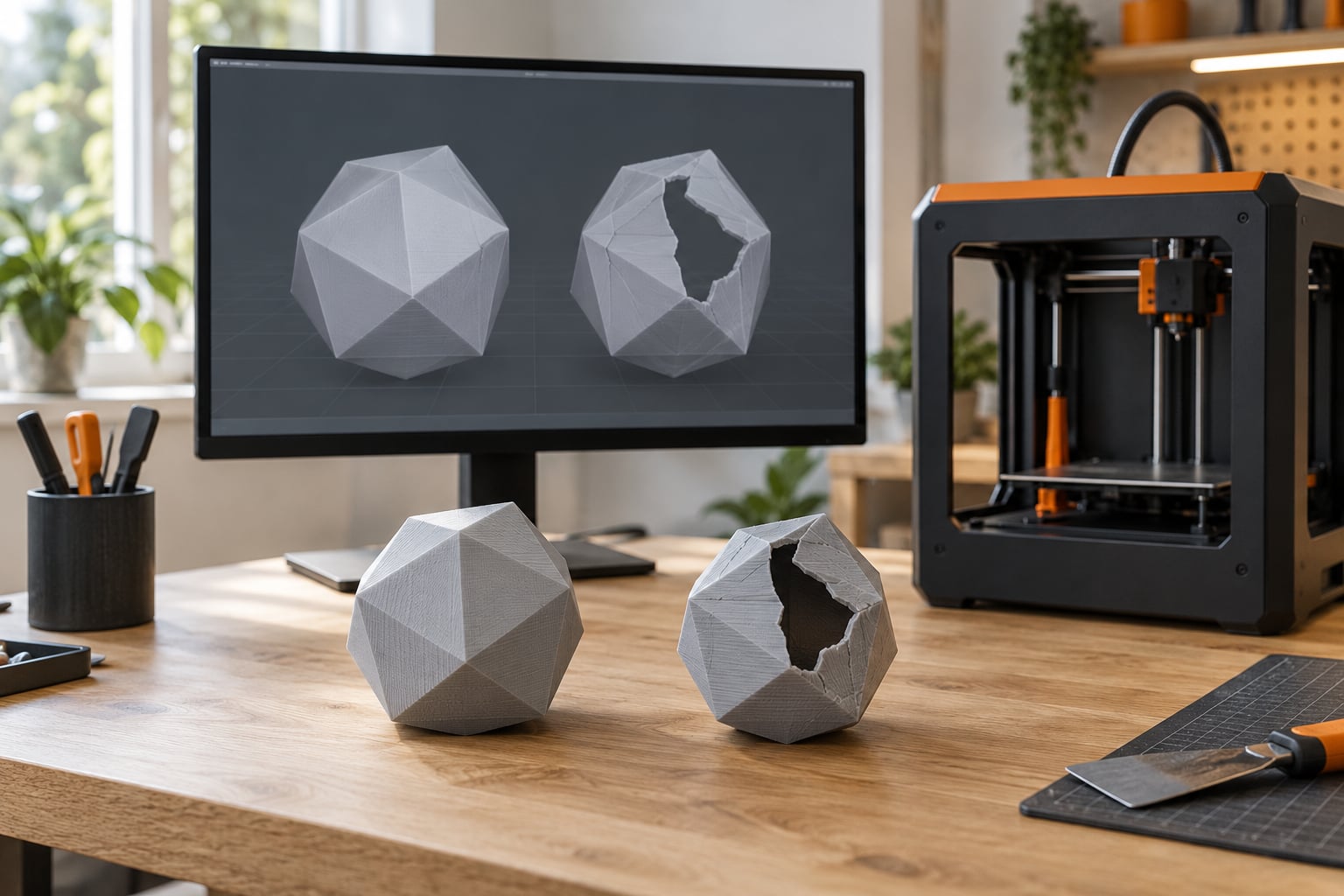
A manifold mesh is one in which every edge is shared by exactly two faces, which makes the surface closed and watertight and gives the model a clearly defined inside and outside. Mesh errors and manifold geometry explained in plain terms: any hole, T-junction, flipped normal or stray face breaks that rule, and the slicer is what tells you.
I have spent enough time untangling failed prints to know the pattern. The model looks perfect on screen, the file downloads fine, and then the slicer either refuses it outright or produces a part that is missing walls in spots you will only notice after the print is halfway done.
None of that is bad luck. It is topology, and topology is checkable before you spend filament.
Table of Contents
- 1Mesh Errors and Manifold Geometry Explained at a Glance
- 2What Is a Mesh in 3D Printing?
- 3What Does Manifold Geometry Mean?
- 4The four conditions of a valid printable mesh
- 5What Are the Most Common Mesh Errors?
- 6How Can You Tell If a Mesh Is Not Manifold?
- 7Checking mesh errors and manifold geometry in Blender
- 8Why Do Mesh Errors Cause Slicer or Printing Problems?
- 9Slicer error messages decoded, one line at a time
- 10How Do You Fix Common Mesh Errors Before Printing?
- 11Step 1: merge by distance and delete loose geometry
- 12Step 2: fill or bridge the boundary loops
- 13Step 3: recalculate normals outside
- 14Step 4: run a Boolean union with the Exact solver
- 15Step 5: voxel remesh as the reset button
- 16Step 6: rebuild the model
- 17Which repair tool should you actually use?
- 18Prevention Checklist Before You Export
- 19Frequently Asked Questions
- 20What is manifold geometry?
- 21What is a manifold mesh in 3D printing?
- 22Is non-manifold geometry bad?
- 23What happens if you 3D print with non-manifold edges?
- 24Why does my model look fine but will not slice?
- 25Can a slicer fix non-manifold edges automatically?
- 26How do I fix non-manifold edges in Blender?
- 27Conclusion
Mesh Errors and Manifold Geometry Explained at a Glance
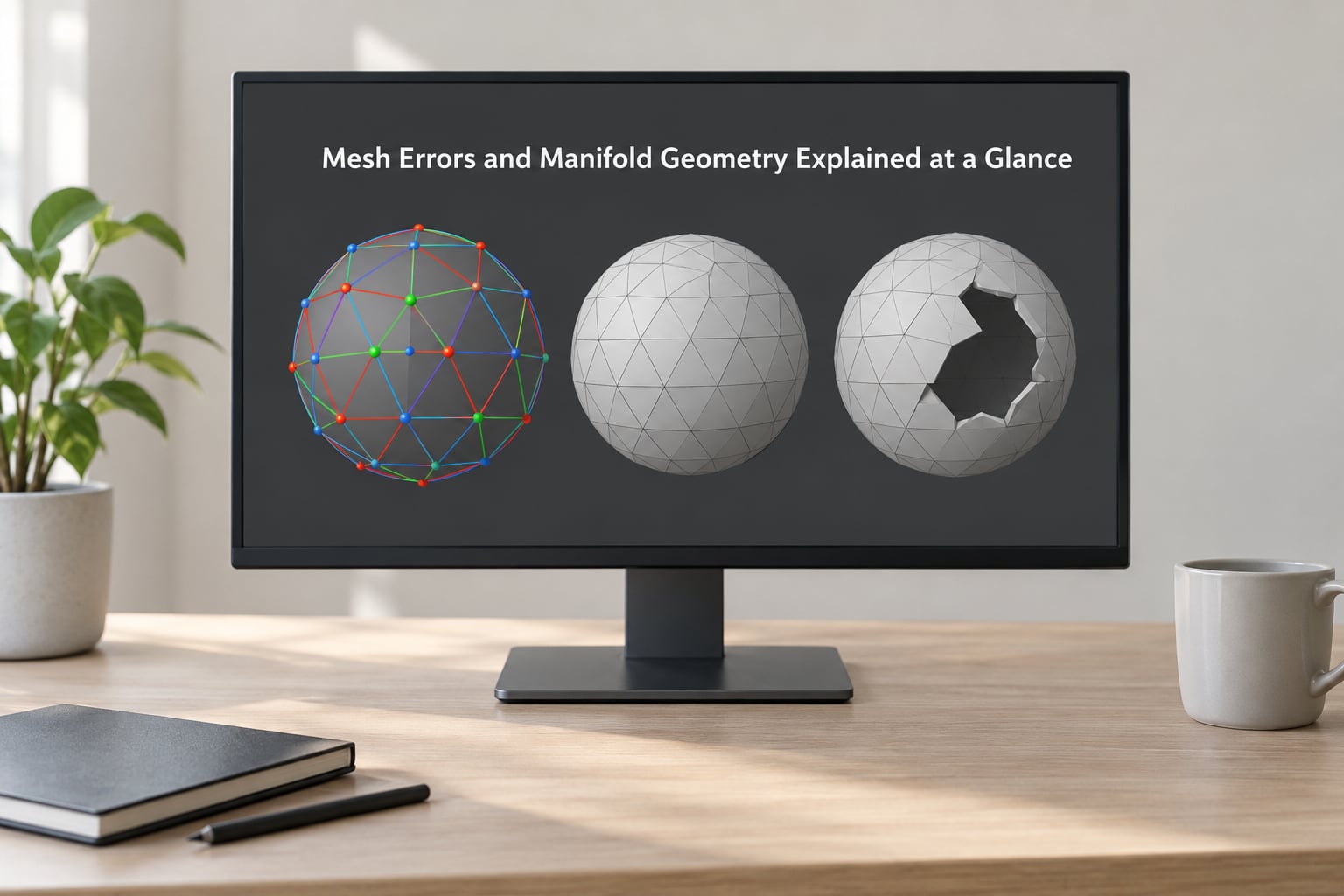
Here is the short version of every term this article uses. If a word appears in a slicer warning or a repair tool, you will find it below with a plain definition.
| Term | What it means |
|---|---|
| Mesh | The collection of vertices, edges and flat faces that describes the surface of a solid object. |
| Manifold mesh | A mesh where every edge is used by exactly two faces, so the surface is closed and has a defined interior. |
| Watertight mesh | Another name for a closed manifold mesh. Nothing leaks through, so the model can hold an enclosed volume. |
| Boundary edge | An edge used by only one face, which means a hole in the surface. Slicers often call this an open shell or a naked edge. |
| Non-manifold edge | An edge used by three or more faces, which branches and leaves the interior ambiguous. |
| T-junction | A vertex sitting on the middle of another edge without sharing it, so the two surfaces technically touch but do not connect. |
| Self-intersection | Geometry that passes through itself, so two parts of the surface occupy the same space. |
| Loose geometry | Floating vertices, duplicate faces or zero-area faces that add nothing to the solid. |
| Flipped normals | A face pointing inward instead of outward, which breaks the inside versus outside decision. |
| Voxel remesh | Rebuilding the surface from a volume, which usually produces clean manifold geometry at the cost of detail. |
Comparing the two states directly is usually the fastest way to understand the whole idea.
| Check | Manifold mesh | Non-manifold mesh |
|---|---|---|
| Edges per edge | Exactly two | One (hole) or three or more (branching) |
| Surface | Closed, watertight | Open, cracked or doubled back on itself |
| Inside and outside | Unambiguous | Ambiguous or impossible |
| Slicer behaviour | Slices cleanly, generates closed perimeters and infill | Warning, repair prompt or silently broken toolpaths |
| Print result | Enclosed volume, predictable strength | Missing walls, weak sections or a failed print |
What Is a Mesh in 3D Printing?
A mesh describes the surface of an object using three building blocks: vertices (points), edges (lines between points) and faces (flat polygons or triangles spanning them). A cube is the easy example. Eight corners, twelve edges, six square faces.
Slicers work from that same structure. The slicer walks the model in thin horizontal slices and asks one question at every layer: which side of this surface is solid? Everything after that question, perimeters, top and bottom layers, infill, support, depends on getting a clean answer.
The mesh is the translation layer between a modelling program and the printer. CAD tools, sculpting packages, scanners and AI generators each produce meshes in slightly different ways, and that variation is where most mesh errors come from.
Triangle count is worth mentioning too. Quad-dominant meshes, which use four-sided faces, are easier for a human to edit by hand, but nearly every slicer converts everything to triangles internally for the geometry calculations.
What Does Manifold Geometry Mean?
Manifold geometry is 3D geometry in which every edge is shared by exactly two faces, with no holes, self-intersections, duplicate faces or inconsistent normals. That closes the surface completely, so the model is watertight and has a mathematically defined inside and outside.
You will see this called a watertight mesh, a closed mesh or a valid solid mesh. All three mean the same thing, and all three describe what the slicer needs from you.
There is a subtle distinction worth keeping straight. A manifold surface is a surface where every point has a neighbourhood that resembles a flat disc, which is a property of the skin alone. A manifold solid, which is what printing needs, is a closed surface that also encloses a volume.
The four conditions of a valid printable mesh
- No boundary edges, meaning every edge is used by exactly two faces.
- No self-intersections where the surface passes through itself.
- No duplicate, overlapping or zero-area faces.
- Consistent face normals pointing outward, so inside and outside are unambiguous.
Is non-manifold geometry bad? For 3D printing, yes, because a slicer literally cannot tell which region is solid. For rendering or a game engine, a non-manifold surface is often harmless, which is why models built for animation can download fine and still refuse to slice.
What Are the Most Common Mesh Errors?
These are the defects you will run into over and over. The table maps each one to what it looks like, why it happened and what actually fixes it.
| Error | How it looks | Why it happens | How to fix it |
|---|---|---|---|
| Hole or open boundary | A gap in the surface, often along one side or the underside | Deleted face, incomplete export, unapplied modifier, scan dropout | Fill or bridge the boundary loops, then recalculate normals |
| Non-manifold branching edge | Three or more faces meeting on one edge | Overlapping geometry, a wall of zero thickness, duplicate surfaces | Separate by distance, delete interior faces, Boolean union |
| T-junction | A vertex touching the middle of an edge | Uneven tessellation between two surfaces that were never stitched | Stitch the vertices, or remesh the region |
| Self-intersection | Surfaces crossing through each other | Modifier stacking, sculpted geometry pushed through itself | Boolean intersection check, then voxel remesh |
| Duplicate or coplanar faces | Two layers of surface in the same spot | Repeated Boolean unions, unapplied Solidify | Merge by distance, delete interior geometry |
| Zero-area or degenerate face | Invisible sliver triangles, often left over from collapsed edges | Merge operations or export tolerance rounding coordinates | Merge by distance, then delete loose geometry |
| Flipped or inconsistent normals | Dark or inside-out patches in solid view | Mirrored parts, bad boolean result, import from another tool | Recalculate normals outside, then check orientation |
| Disconnected shells | Floating pieces hovering off the main body | Stray vertices or a detached object left in the scene | Delete loose geometry, or separate and repair each part |
| Internal faces | Surfaces buried inside the solid | Two solids that overlap but were never unioned | Boolean Exact union |
| Zero-thickness wall | A panel with no measurable thickness | Modelled with a plane instead of a solid, common in downloaded models | Solidify with a real thickness, then re-check the mesh |
Booleans deserve special mention because they cause more broken downloads than anything else. Users on r/blender regularly report that a model looked fine, a Boolean modifier was applied, and suddenly the object is no longer printable. The usual reason is that the two shapes never actually overlapped properly, so the solver produced an interior face instead of a merged solid.
A second thread that keeps coming up is triangle growth. Slicers and repair tools often resolve problems by adding geometry, and users then worry the file is too heavy. Merge by distance and deleting loose geometry are cheap. Voxel remesh is not, because it rebuilds the whole surface at the resolution you choose.
How Can You Tell If a Mesh Is Not Manifold?
Every edge in your mesh has a count. If the count is 2 everywhere, you have a manifold mesh. If any count is 1, you have a hole. If any count is 3 or higher, you have a branching edge. Counting is exactly what every validation tool does, which is why the answer arrives in seconds rather than after a failed print.
Visual inspection alone will not do it. STL files store a list of triangles and nothing else, so there is no topology information to inspect in the first place. That is why a model can look flawless on screen and still contain errors that only appear once the slicer tries to build an enclosed volume from it.
Checking mesh errors and manifold geometry in Blender
Blender has the most direct check available. Open the file, press Tab to enter edit mode, then use Select, then All by Trait, then Non Manifold. Everything that lights up is either a boundary edge or a branching edge, and the status bar reports how many were selected.
For a fuller report, open the sidebar with N, go to the Item tab, and use 3D Print Toolbox under the Analysis section. It lists non-manifold edges, loose geometry, faces with an area of zero, faces with sides of three or fewer, and intersecting faces. The panel also gives you buttons that select each category so you can see the problem in the viewport.
In MeshMixer, open Analysis, then Inspector. The inspector colour-codes the defects so you can spot them at a glance: blue marks holes and boundary edges, magenta marks non-manifold edges, and red marks self-intersections. Analysis, then Show Statistics also reports loose geometry and degenerate faces.
For batch or scripted checks, two command line tools do the work well. admesh reports exact statistics and can repair in place, while the open-source manifold library for Python can validate a large folder of STLs without opening a single interface. That combination is what I would use before a print farm run.
Finally, load the file into your slicer and look at the preview. PrusaSlicer, Cura, Bambu Studio, OrcaSlicer and Lychee all show warnings on load, and all of them let you slice anyway. Slicing anyway is how you learn why the warning matters.
Why Do Mesh Errors Cause Slicer or Printing Problems?
Because a slicer needs to know which side of the surface is solid. Fill an enclosed volume with infill, generate a closed perimeter loop and decide which surfaces are internal, and all of that work depends on the inside and outside being unambiguous. A non-manifold edge removes the answer.
What happens if you print a model with non-manifold edges? The cascade usually runs like this:
- The slicer warns, repairs silently, or refuses the model outright.
- Walls disappear at the layer where the hole sits, so the part is locally open.
- Infill is generated into the wrong region, or not generated at all in a hollow section.
- Perimeters loop incorrectly around a branching edge, producing thin or doubled lines.
- The printed part is weak exactly where you loaded it, and breaks during handling or assembly.
- You lose the print time and the filament before you find out.
Forum threads about this topic are full of surprise successes, which is worth understanding too. A model with intersecting-but-separate solids often prints anyway, because the slicer can guess a plausible inside. It is not a reliable result, it is a lucky one.
Slicer error messages decoded, one line at a time
| What you see | What it means |
|---|---|
| Non-manifold edges detected | At least one edge is used by fewer or more than two faces. |
| Object may not be a closed mesh / open shells | Boundary edges exist, so the surface has holes. |
| Model contains errors | A general message, usually triggered by one of the two above. |
| Auto-repairing mesh | The slicer is about to change your geometry without asking. |
| Warning: object has intersecting faces or shells | Overlapping geometry that was never unioned into one solid. |
Cura is the one worth cautioning about. It can repair on load, silently, and the result sometimes differs from what you exported. Check the triangle count before and after, and compare the preview if anything looks different.
How Do You Fix Common Mesh Errors Before Printing?
Work from the cheapest fix upward. Most problems are solved in the first two steps, and each step further down the list costs you detail or file size.
Step 1: merge by distance and delete loose geometry
In Blender, select all, then Mesh, then Clean Up, then Merge by Distance, with a threshold around 0.0001 m for a typical desktop model. This welds coincident vertices, which clears most T-junctions and sliver faces for free. Then use Mesh, then Clean Up, then Delete Loose Geometry to remove floating points.
Step 2: fill or bridge the boundary loops
Any remaining selected edges are holes. In Blender, Mesh, then Clean Up, then Fill Holes caps small ones, and Bridge Edge Loops closes larger gaps between two edge loops. Fill only holes you actually want closed, because a filled hole can hide a design mistake.
Step 3: recalculate normals outside
Mesh, then Normals, then Recalculate Outside. This fixes flipped faces in one click. If the whole object ends up inside out, the winding was reversed from the start and you need to flip the faces once instead.
Step 4: run a Boolean union with the Exact solver
If two solids overlap but were never merged, select both and apply a Boolean modifier with the operation set to Union and the solver set to Exact. The older Fast solver is what produces leftover interior faces and stray shells. If Exact still leaves errors, separate the objects back apart, repair each one on its own, then union again.
Step 5: voxel remesh as the reset button
Mesh, then Voxel Remesh, at a voxel size around 0.1 to 0.2 mm for FDM work. This throws away your topology and rebuilds a clean manifold surface, so you lose sharp edges and fine surface detail. It is a good last stop for organic shapes like figurines or scan data, and a bad idea for precise CAD parts.
Step 6: rebuild the model
If repair has already pushed the triangle count into the hundreds of thousands and the mesh still fails validation, stop repairing. Rebuilding a clean model from your original dimensions takes less time than you would spend undoing damage from repeated remeshes. A rough rule from people who do this daily: if a single repair pass changes more than about 30% of the surface, remodelling is usually the better use of the afternoon.
Which repair tool should you actually use?
| Tool | Cost | Platforms | Best for |
|---|---|---|---|
| Blender | Free | Windows, macOS, Linux | Full inspection and repair, exact control over every fix |
| Autodesk MeshMixer | Free | Windows, macOS | Fast visual inspection with colour-coded defects |
| Microsoft 3D Builder | Free | Windows | Quick one-click repair of a downloaded file |
| admesh | Free, open source | Windows, macOS, Linux | Command line validation and batch fixing |
| Netfabb | Paid | Windows, macOS, Linux | Industrial repair of damaged scan or CAD data |
| Slicer auto-repair | Free | Depends on slicer | Last resort, since it can change geometry silently |
Mac users run into a real gap here. Bambu Studio is not available for macOS, so if your only repair option lived inside that slicer, you need to install Blender or MeshMixer separately. It is a five-minute install and it removes a whole category of frustration.
Whichever route you take, validate once more after repairing. A single pass that reports zero non-manifold edges, zero boundary edges and zero intersecting faces is the signal that you are ready to export.
Prevention Checklist Before You Export
Most mesh errors are cheaper to prevent than to repair. Run through this list before your final export and you will catch nearly everything.
- Apply every modifier, including Boolean and Solidify, before exporting.
- Give every wall a real thickness. No panel should measure zero.
- Avoid coplanar faces sitting exactly on top of each other.
- Stitch surfaces together at the modelling stage instead of leaving them to overlap.
- Keep part tolerances large enough that coordinate rounding cannot collapse an edge.
- Export as 3MF when your printer supports it, since it stores mesh integrity data that STL throws away.
- Run one validation pass on the exported file, not just on the model in your viewport.
Frequently Asked Questions
What is manifold geometry?
Manifold geometry is 3D geometry where every edge is shared by exactly two faces, with no holes, self-intersections or duplicate faces. That closes the surface completely, making the model watertight with a clearly defined inside and outside. A slicer needs that definition to generate enclosed volumes, perimeters and infill correctly.
What is a manifold mesh in 3D printing?
A manifold mesh is the surface representation of a solid where each edge belongs to exactly two faces and every face points outward. It is also called a watertight mesh, a closed mesh or a valid solid mesh. Because no edge is shared by three or more faces, no region of the model is ambiguous, which is exactly what slicing software requires.
Is non-manifold geometry bad?
For 3D printing, yes, because a slicer cannot determine which side of the surface is solid. You may get missing walls, wrong infill or a warning you chose to ignore. For rendering, animation or game engines it is often harmless, which is why models built for those uses can download perfectly and still refuse to slice.
What happens if you 3D print with non-manifold edges?
Expect a cascade. The slicer may warn, repair silently or refuse the file. If it proceeds, walls can disappear at the layer containing the hole, infill may fill the wrong region or none at all, and perimeters can loop badly around branching edges. The part then fails exactly where you loaded it, after you have already spent the filament.
Why does my model look fine but will not slice?
Because STL files store a list of triangles and no topology information, so nothing on screen can reveal a bad edge. A T-junction or a zero-area face looks identical to a clean one in solid view. The moment the slicer tries to build an enclosed volume, it reads the topology you cannot see and reports the problem.
Can a slicer fix non-manifold edges automatically?
Most slicers can attempt it, and Cura in particular can repair on load without asking. The catch is that repair changes geometry, sometimes badly, and it can multiply your triangle count. Treat auto-repair as a preview tool: compare the preview and the file statistics before and after, and fix the model in Blender or MeshMixer if anything looks different.
How do I fix non-manifold edges in Blender?
Enter edit mode, then use Select, All by Trait, Non Manifold to see every bad edge at once. Run Mesh, Clean Up, Merge by Distance to weld coincident vertices and clear most T-junctions, then Delete Loose Geometry. Fill or bridge any remaining boundary loops, recalculate normals outside, and only reach for a Boolean union with the Exact solver or a voxel remesh if those steps leave errors behind.
Conclusion
Start with a single validation pass on the file you intend to slice, not on the model sitting in your viewport. Open it in Blender, run Select, All by Trait, Non Manifold, and read the count at the bottom of the window. Anything selected is a hole or a branching edge, and nothing else can be diagnosed until those are resolved.
From there, work upward: merge by distance, delete loose geometry, fill or bridge the boundary loops, recalculate normals. Boolean union with the Exact solver handles overlapping solids, and voxel remesh is the reset when organic geometry has become a mess. If none of that gets you to zero errors, rebuilding the model is faster than continuing to repair it.
Understanding manifold geometry takes about ten minutes and saves you from guessing at print failures for the rest of the year.