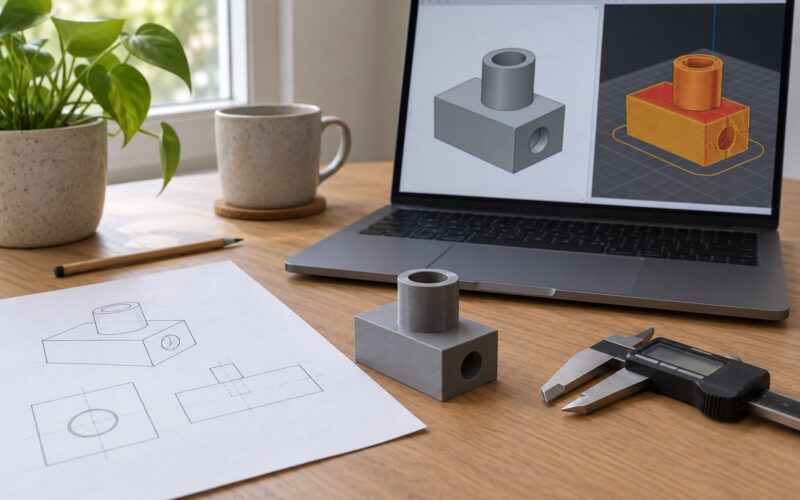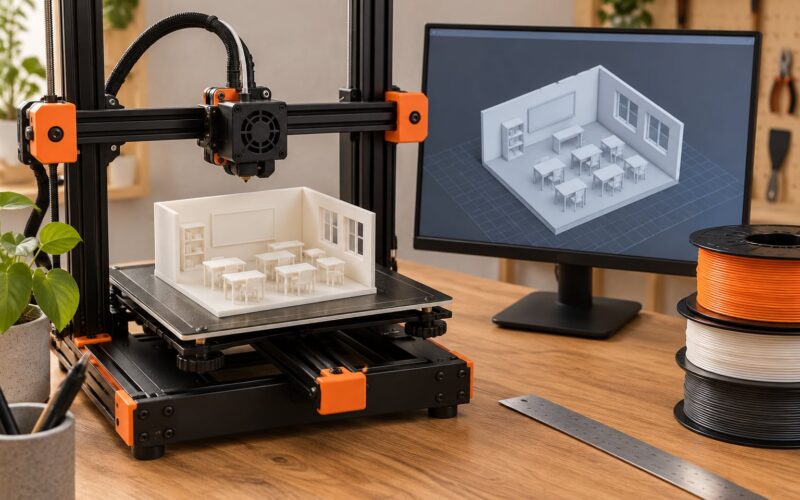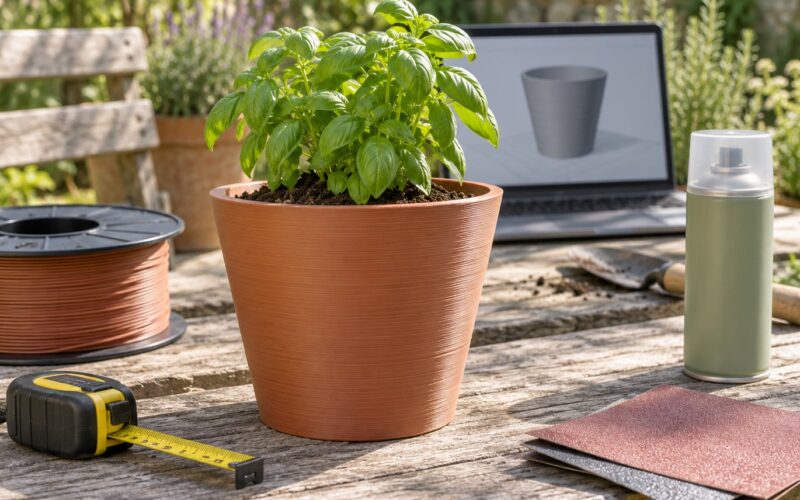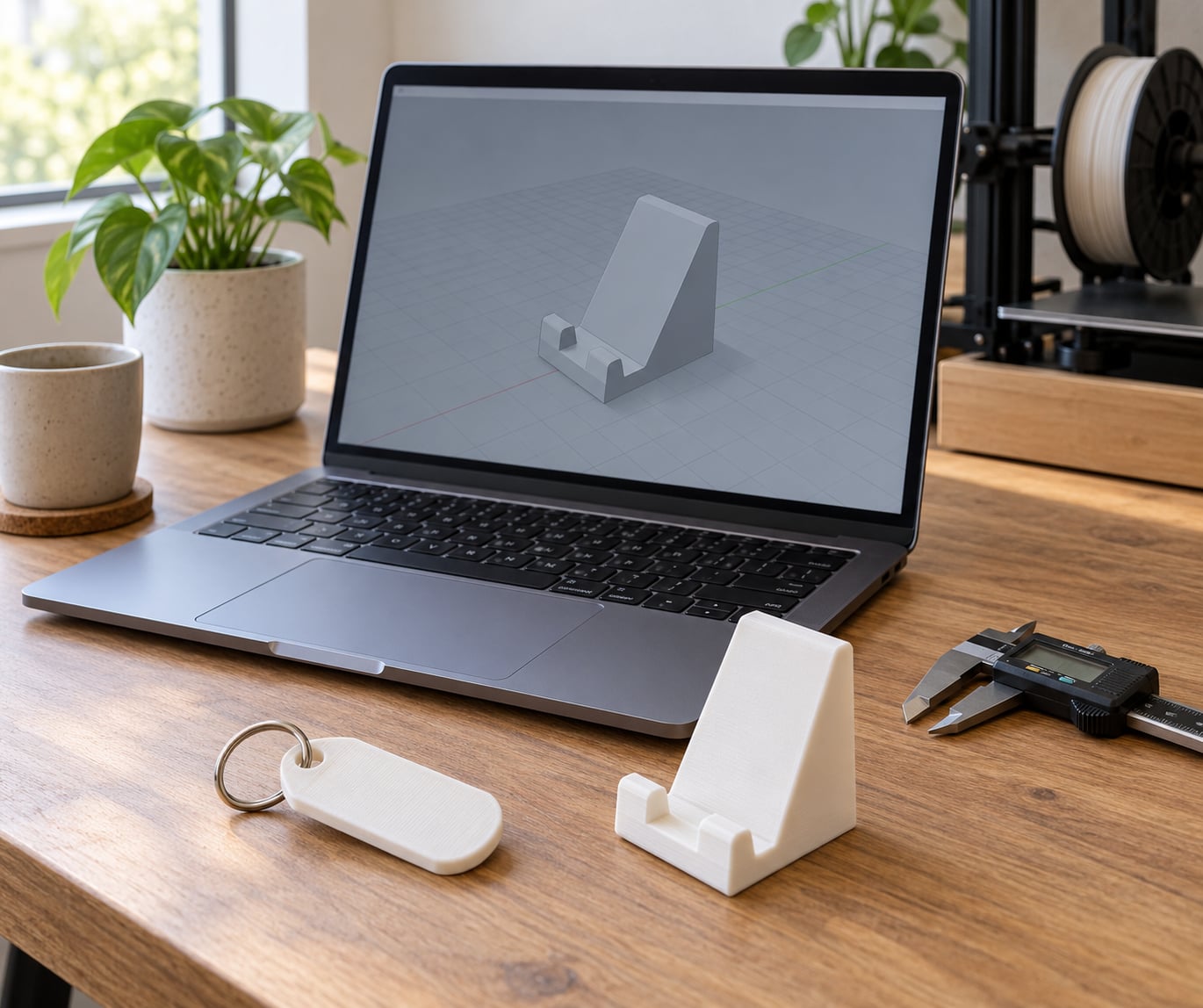
Tinkercad is the best free CAD software for 3D printing beginners because it runs in a browser, needs no install, and gets you from a blank screen to a printed key tag in one sitting. Everything else on this list is worth knowing about, but most beginners should start there and move on only when a project demands it.
Free CAD software is design software you can use at no cost to build the 3D models your printer needs. The catch is that “free” covers three very different things: open-source licences, limited personal-use tiers, and timed trials.
One quick correction before we go further, because it trips up nearly everyone: a slicer is not CAD software. Cura and PrusaSlicer turn a finished 3D model into G-code instructions your printer follows. CAD is where the model gets made. You need both, but they are different jobs and no single program here does both well.
If you would rather skip the theory, open Tinkercad, drag a shape onto the work plane, and export an STL. That loop is the whole game for a first month.
Table of Contents
- 1Best Free CAD Software for 3D Printing Beginners at a Glance
- 21. Tinkercad: The Easiest Free CAD Tool for First-Time 3D Printing Beginners
- 3Is Tinkercad the best free CAD software for 3D printing beginners?
- 42. FreeCAD: Best Free Option for Open-Source and Parametric Modeling
- 53. Blender: Best Free CAD Software for Artistic and Sculpted 3D Prints
- 64. Onshape: A Strong Browser-Based CAD Choice for Collaborative Projects
- 75. Fusion 360: Beginner-Friendly Professional CAD with a Limited Free Plan
- 86. Sculptris: A Simple Free Modeling App for Hand-Sculpted 3D Print Files
- 97. OpenSCAD: Best for Programmatic and Precise 3D Printable Parts
- 108. SolveSpace: A Lightweight Free CAD Program for Technical Tinkering
- 119. Shapr3D: A Polished Free-Tier CAD App for iPad and Mac Beginners Shapr3D is a touch-first CAD program built for iPad, with a Mac and Windows version alongside it. Modeling happens with direct gesture manipulation, so there is almost no mouse dependence, and it uses a real constraint-based solid engine rather than combined primitives. It also has one of the nicer interfaces in the category, which is why it shows up so often as a first tablet CAD app. A desktop organizer or a small electronics enclosure is a sensible first project. The free tier is the catch. It is limited to a small number of saved models, so it works as a trial of the workflow rather than a permanent free tool. People coming from Tinkercad often call it easier to learn but not truly free. 10. Meshmixer: Best Free Tool for Cleaning Up and Preparing 3D Print Meshes
- 12Which Free CAD Software Should You Choose?
- 13How to Choose Software Before You Start Your First 3D Print
- 14Check whether it runs on your machine
- 15Decide whether cloud-only access is acceptable
- 16Read what “free” actually means
- 17Match the modeling style to your project type
- 18Confirm the export format and units
- 19Look for learning resources before you commit
- 20Know which tools to skip
- 21Frequently Asked Questions
- 22Is there anything better than Tinkercad for 3D printing?
- 23Is FreeCAD really free to use?
- 24Is Fusion 360 free for personal use?
- 25Are Onshape free account documents public?
- 26Do I need CAD software, or is a slicer enough?
- 27What file format do I need for 3D printing?
- 28Start With One Simple Project
Best Free CAD Software for 3D Printing Beginners at a Glance
Here is the short version before the detail. Free tiers change often, so treat each row as a snapshot for 2026 and confirm current terms on the vendor’s own site before you commit to a tool.
| Tool | How the free access works | Platform | Learning curve | Best for | Export |
|---|---|---|---|---|---|
| Tinkercad | Free account, browser based | Any device with a browser | Very low | First projects, organizers, simple parts | STL, 3MF, OBJ |
| FreeCAD | Open source, fully offline | Windows, macOS, Linux | Steep | Parametric mechanical parts | STL, STEP, OBJ |
| Blender | Open source GPL | Windows, macOS, Linux | Moderate to high | Figurines, sculpts, decorative models | STL, OBJ, 3MF |
| Onshape | Free educational and trial access | Browser | Moderate | Team projects, shared part studios | STL, STEP, 3MF |
| Fusion 360 | Personal-use licence, requalifies periodically | Windows, macOS | Moderate | Professional part and assembly design | STL, STEP, 3MF |
| Sculptris | Free, but development has ended | Windows, macOS | Low | Quick organic sculpts | STL, OBJ |
| OpenSCAD | Open source | Windows, macOS, Linux | Moderate for non-coders | Configurable code-driven parts | STL, OFF, CSG |
| SolveSpace | Open source | Windows, macOS, Linux | Moderate | Compact precise parts | STL, STEP |
| Shapr3D | Free tier capped at a few models | iPad, Mac, Windows | Low | Touch-first modelling on a tablet | STL, 3MF, STEP |
| Meshmixer | Free, distributed by Autodesk | Windows, macOS | Low | Repairing and prepping STL files | STL, OBJ, 3MF |
1. Tinkercad: The Easiest Free CAD Tool for First-Time 3D Printing Beginners
Tinkercad is a browser-based design tool built around a library of primitive shapes that you drag, resize, rotate, and combine. There is no file menu to learn and nothing to install, which is why most beginners finish a first model inside twenty minutes.
Objects snap to a work plane and to each other, and holes appear automatically when you drop one shape into another. Everything runs on Autodesk servers, so an old laptop or a school Chromebook is enough. Your first projects should be simple: a name key tag, a wall hook, a phone stand, or a small parts organizer built from a box shape with dividers.
Is Tinkercad the best free CAD software for 3D printing beginners?
Yes for a first three months, and possibly longer. It is the best free CAD software for 3D printing beginners because there is nothing to install, nothing to license, and a huge community of beginner models to copy and adapt. The limits show up when you need precise fits, custom profiles, or shapes that cannot be assembled from boxes, cylinders, and spheres.
On r/3Dprinting, a recurring verdict is that Tinkercad is genuinely good for learning the concepts of 3D design, then starts to feel restrictive fairly quickly. That is not a flaw. It is the tool doing its job at the level you are at.
2. FreeCAD: Best Free Option for Open-Source and Parametric Modeling
FreeCAD is a desktop open-source program for parametric modeling, where you build a part from sketches and features such as pads, pockets, and fillets. Change a dimension in the sketch and the whole model rebuilds, which is exactly what you want for brackets, adapters, and enclosures that come in several sizes.
Two workbenches cover most beginners: Sketcher for 2D profiles and Part Design for turning those profiles into solids. Exports include STL for printing and STEP for passing geometry to other mechanical tools.
Everything runs locally, so your models never leave your machine and you can work with no connection at all. That offline privacy is the most valued perk among hobbyists, and it is the reason many people land on FreeCAD rather than a cloud tool.
A good first project is a phone stand: sketch a side profile, pad it to the thickness you want, then add a lip at the front. Adjust one dimension and you have a stand for a different phone.
Be honest about the cost. Forum descriptions call the interface steep, and one Hacker News comment put it neatly: the learning curve was steep because FreeCAD really wants you to do things the FreeCAD way, but past that point it becomes enjoyable. Budget a weekend rather than an evening.
3. Blender: Best Free CAD Software for Artistic and Sculpted 3D Prints
Blender is an open-source 3D creation suite covering modeling, sculpting, animation, and rendering, and it exports print-ready meshes for any slicer. For miniatures, figurines, cosplay props, and organic shapes, nothing else on this list is close.
The sculpt mode uses dynamic topology brushes to push and pull a base mesh, with symmetry so a single side of a face mirrors correctly. Modifiers handle subdivision and smoothing, and there is a 3D Print Toolbox add-on that checks for problems such as non-manifold geometry.
Blender is not engineering CAD. It has no parametric feature tree in the Fusion sense, and dimensional accuracy is not its strength. Treat it as a mesh modeler for artistic prints, not for parts that need to bolt together.
4. Onshape: A Strong Browser-Based CAD Choice for Collaborative Projects
Onshape runs professional CAD in a browser with full part studios, real-time collaboration, and version history, so several people can edit the same document at once. If your project involves a friend or a club working on the same bracket, this is the smoothest free option that behaves like a professional tool.
Free access comes in two shapes. Educational access exists for students and educators, and a free trial plan lets individuals try the platform. Both are worth testing; neither is the same thing as an unlimited free personal licence, so read the current terms before you rely on it for ongoing work.
Here is the part almost every ranking page leaves out. On the free plan, your documents are public. That is the biggest recurring complaint across beginner threads on r/3Dprinting and PolyExpression, and it matters if you are designing something you do not want copied. If privacy matters, FreeCAD or SolveSpace are the better free picks.
5. Fusion 360: Beginner-Friendly Professional CAD with a Limited Free Plan
Fusion 360 is Autodesk’s professional cloud CAD, and it is more approachable than its reputation suggests. The interface is clean, parametric modeling is straightforward, and it adds assemblies, simulation, and manufacturing tools that hobbyists rarely need but sometimes grow into.
You design a sketch, apply a feature, and the timeline lets you go back and change any earlier step. For someone who may eventually design parts for work, the skills transfer directly to industry-standard workflows.
The catch is the licence. The free offer is a personal-use licence rather than an open-source one, it is tied to an account and an internet connection, and it must be requalified periodically. Autodesk can change those terms, so check eligibility before you build a habit around it. A common r/3Dprinting summary is that Fusion 360 is essentially Tinkercad with the ceiling removed and a narrower focus on smaller projects.
Hardware matters more here than anywhere else on this list. It wants a capable PC with a dedicated graphics card and a steady connection, which rules it out on older machines that still run Tinkercad fine.
6. Sculptris: A Simple Free Modeling App for Hand-Sculpted 3D Print Files
Sculptris is a focused sculpting app with a small interface and very few controls. You start from a sphere, draw strokes to push and pull the surface, and export STL when the form looks right. It handles organic shapes better than any other free beginner tool, and it will not distract you with features you do not need yet.
Beginners typically make a small figurine, a sculpted handle, or a decorative object with it. Remeshing keeps the polygon count manageable, and symmetry mirrors your work as you go.
Two caveats matter. Sculptris is no longer in active development, so it will never gain features, and it has been folded into the broader ZBrush ecosystem rather than improved on its own. Some older pages still list it as a current recommendation without mentioning that. Use it if you want a quick sculpt and know it is a resting tool.
7. OpenSCAD: Best for Programmatic and Precise 3D Printable Parts
OpenSCAD describes shapes with code rather than a mouse. You write a short text file of primitives, sizes, and transforms, run it, and the program renders the solid you described. Because the model is described rather than drawn, changing a dimension means editing one number.
The language is small: cubes, spheres, and cylinders as primitives, plus transformations like translate, rotate, scale, and mirror, with union, difference, and intersection for combining them. For parametric families this is unbeatable. A wall mount or an enclosure with a variable width, depth, and wall thickness takes a page of code instead of an hour of clicking.
It is not for artistic work, and there is no direct mouse modelling. People who already enjoy tinkering with code tend to love it; people who want a visual canvas do not.
8. SolveSpace: A Lightweight Free CAD Program for Technical Tinkering
SolveSpace is an open-source constraint-based modeler with an unusually small footprint and a devoted following. You draw a sketch, add dimensional and geometric constraints so the geometry locks itself, then extrude or revolve it into a solid.
Because constraints define the shape, the model stays consistent when dimensions change. Files export to STL and STEP, and the program runs on Windows, macOS, and Linux.
The interface is denser than Tinkercad and less documented, so the learning curve is meaningfully steeper. It rewards careful work. A good beginner exercise is a simple clamp, a bracket, or a measuring jig, where every dimension has to be right for the part to function.
9. Shapr3D: A Polished Free-Tier CAD App for iPad and Mac Beginners
Shapr3D is a touch-first CAD program built for iPad, with a Mac and Windows version alongside it. Modeling happens with direct gesture manipulation, so there is almost no mouse dependence, and it uses a real constraint-based solid engine rather than combined primitives.
It also has one of the nicer interfaces in the category, which is why it shows up so often as a first tablet CAD app. A desktop organizer or a small electronics enclosure is a sensible first project.
The free tier is the catch. It is limited to a small number of saved models, so it works as a trial of the workflow rather than a permanent free tool. People coming from Tinkercad often call it easier to learn but not truly free.
10. Meshmixer: Best Free Tool for Cleaning Up and Preparing 3D Print Meshes
Meshmixer is not a CAD program in the modeling sense. It takes a mesh you already have and prepares it for printing, which makes it the most useful companion tool on this list for anyone working with downloaded models or output from Blender and Sculptris.
It repairs broken and non-manifold geometry, remeshes a dense sculpt down to a printable triangle count, and smooths hard edges. It can also hollow a shell to save material and time, cut the model into pieces, and generate support structures before it ever reaches the slicer.
Use it when a downloaded STL fails to slice, when a sculpt is too heavy to print, or when you want a hollow version of a model. For creating shapes from scratch, go back to a modeler such as Tinkercad, FreeCAD, or OpenSCAD.
Which Free CAD Software Should You Choose?
Pick by the kind of thing you want to print, not by which tool sounds most capable.
- Absolute beginners: Tinkercad. Nothing to install, and the fastest route to a finished print.
- Functional mechanical parts and open-source learning: FreeCAD. Offline, private, parametric, and free without licence strings.
- Figurines, miniatures, and decorative objects: Blender, with Meshmixer for print prep.
- Shared or team projects in a browser: Onshape, after you understand what the free plan exposes publicly.
- A professional workflow you may use for work later: Fusion 360, while you keep checking the personal-use terms.
- Code-first modelling and configurable parts: OpenSCAD.
- Touch modelling on a tablet: Shapr3D, with the model cap in mind.
- Precise small parts with a compact tool: SolveSpace.
One progression shows up again and again in beginner threads: start in Tinkercad, hit its ceiling, then move to Fusion 360 or FreeCAD. On r/3Dprinting, one user described starting with Tinkercad, getting fed up with the limits, and learning Fusion 360 for personal use. Another suggestion was FreeCAD with video tutorials, which is a common pairing. You do not have to follow that path, but knowing it exists makes the switch feel normal rather than a failure.
How to Choose Software Before You Start Your First 3D Print
Seven things decide which free tool actually suits you. Check them before you commit, because switching later means relearning an interface.
Check whether it runs on your machine
Browser tools such as Tinkercad and Onshape need little more than a modern browser. Desktop programs are heavier. Blender and FreeCAD install fine on modest machines, but Fusion 360 wants a capable PC with a discrete graphics card, and every option gets smoother with more memory and a faster drive.
Decide whether cloud-only access is acceptable
Tinkercad and Onshape keep your work on someone else’s servers, which means an account and a connection. FreeCAD, OpenSCAD, and SolveSpace run entirely on your machine, so you can work offline and keep designs private. This one decision eliminates half the list for some people.
Read what “free” actually means
Three models exist. Open-source software such as FreeCAD, Blender, OpenSCAD, and SolveSpace is free under a public licence with no account and no expiry. Personal-use tiers such as Fusion 360’s are free under conditions, often including periodic requalification and a ban on commercial work. Trials such as Onshape’s free access last a limited period and change terms. A licence that can lapse is not the same promise as an open-source licence, and it is worth checking before you invest a month of learning time.
Match the modeling style to your project type
Parametric solid modeling, where sketches drive features, suits mechanical parts that need to fit together. Direct manipulation and combined primitives suit quick household objects. Sculpting and mesh modeling suit organic shapes. Code-based modeling suits families of parts where one number changes everything. There is no single best style, only a mismatch penalty when the wrong one meets your project.
Confirm the export format and units
STL is the universal handoff and works everywhere. OBJ is useful for sculpts, 3MF carries color and material settings, and STEP matters when you hand geometry to another engineering tool. Check that your program exports in millimeters, the unit your printer expects, and confirm the model size on screen before slicing. A model exported at the wrong scale is the most common beginner surprise.
Look for learning resources before you commit
Free tools have free teaching material. Tinkercad and Fusion 360 have large official tutorial libraries, and FreeCAD has an active tutorial scene, with Mango Jelly’s video courses the name that comes up most often on r/3Dprinting. Blender has a large community and structured courses. OpenSCAD has a compact, readable language reference. A tool with good tutorials will always be faster to learn than a better tool with none.
Know which tools to skip
Windows 3D Builder and Autodesk 123D Design were both retired, yet they still surface in search results and tutorials written years ago. Following those guides wastes an evening. Sculptris, covered above, is also no longer developed. If a page recommends one of these as a current free choice, the page is out of date.
Frequently Asked Questions
Is there anything better than Tinkercad for 3D printing?
For most beginners, no. Tinkercad is faster to learn, needs no install, and has the largest beginner community. Once you need precise fits, parametric edits, or custom profiles, FreeCAD gives you real depth offline and Fusion 360 gives you a professional workflow, at the cost of a steeper interface and licence terms.
Is FreeCAD really free to use?
Yes. FreeCAD is open-source software released under a public licence, available at no cost on Windows, macOS, and Linux. There is no account, no trial clock, and no commercial-use restriction. Because it runs locally, your models stay on your own machine and you can work with no internet connection at all.
Is Fusion 360 free for personal use?
Autodesk offers Fusion 360 under a personal-use licence that is free for hobby and non-commercial projects. It is not open source, it requires an Autodesk account and an internet connection, and the licence has to be requalified periodically. Check the current terms before you rely on it long term, especially if you ever plan to print parts for paid work.
Are Onshape free account documents public?
Yes, and this is the detail most comparisons skip. On the free plan your documents are visible to others, which is the most common complaint about the service in beginner forums. If you are designing something you do not want copied, choose a program that stores files locally, such as FreeCAD, SolveSpace, or OpenSCAD.
Do I need CAD software, or is a slicer enough?
You need both, and they are different. CAD software creates the 3D model. A slicer such as Cura or PrusaSlicer takes that finished model and turns it into the layer-by-layer instructions your printer follows. A slicer alone cannot design your own parts, so if you want to print something nobody else has made, you need CAD.
What file format do I need for 3D printing?
STL is the format to start with, and every slicer accepts it. OBJ works for sculpts and mesh models, 3MF carries color and material settings, and STEP matters when you pass solid geometry to other engineering tools. Export in millimeters, check the model size on screen, then load the file into your slicer.
Start With One Simple Project
Open Tinkercad today and make one thing: a key tag with a hole, or a small box with a divider. Export it as STL, drop it into your slicer, check that it measures correctly in millimeters, and confirm wall thickness matches your nozzle before printing.
That single loop teaches you more than a month of reading. When Tinkercad stops being enough, you will know exactly which limit you hit, and moving to FreeCAD or Fusion 360 will be a choice rather than a random upgrade.