The short answer: an STL file stores nothing but triangle geometry, while a 3MF file stores that same geometry plus color, material assignments, unit metadata, object structure and usually a full slicer profile. That extra payload is why 3MF is the better choice for multi-color prints, tuned models you want to share, and archived projects. STL still wins on one thing, and it is a big one: almost anything that reads a 3D model reads an STL.
Both formats describe the same thing. A slicer takes the mesh, slices it into layers, and turns it into G-code. Swap one for the other and the layer stack is identical, provided the geometry and the slicer settings are identical. The difference is everything the file carries around that geometry.
I spend a lot of time in slicer forums answering this question, and the honest answer has three parts: 3MF is more capable, several slicers handle it badly, and the format itself does not make your print look better. Here is how each part breaks down.
Table of Contents
- 1STL vs 3MF File Format Differences at a Glance
- 2What Are STL and 3MF File Formats?
- 3What is an STL file? STL means stereolithography
- 4What is a 3MF file? It stands for 3D Manufacturing Format
- 5How Geometry and Surface Detail Differ
- 6Color, Texture, and Multi-Material Support
- 7STL vs 3MF File Format Differences in Practice
- 8File Size, Portability, and Software Compatibility
- 9Accuracy, Units, and Print Scaling
- 10Which Should You Choose?
- 11How to Convert Between STL and 3MF
- 12Frequently Asked Questions
- 13Is 3MF always better than STL for 3D printing?
- 14Do all 3D printers support 3MF files?
- 15Can a 3MF file contain colors and multiple materials?
- 16Will converting an STL file to 3MF improve its print quality?
- 17Should I save my final printing file as STL or 3MF?
- 18Conclusion
STL vs 3MF File Format Differences at a Glance
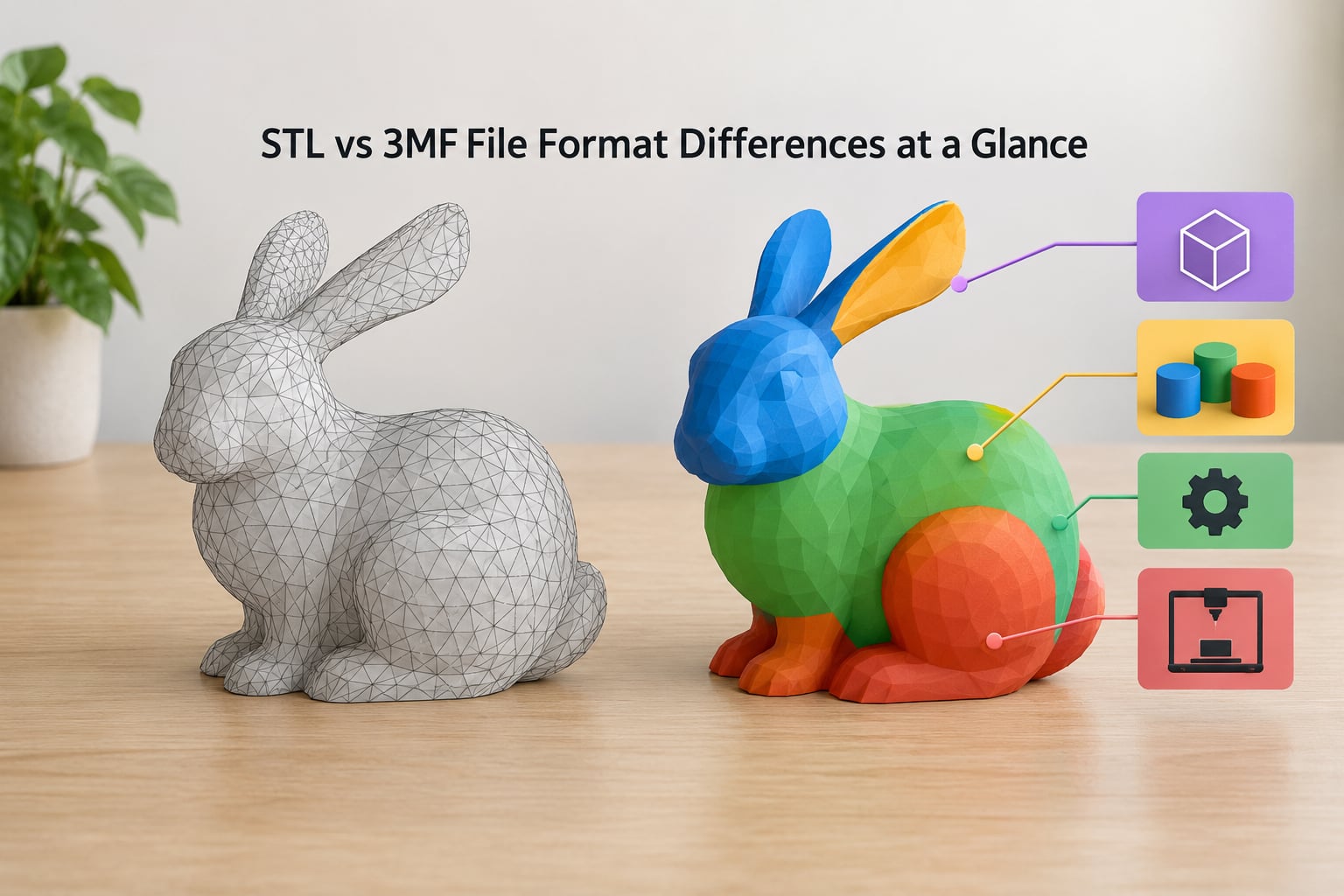
This table is the whole comparison. If a row does not apply to your workflow, ignore it.
| Criterion | STL | 3MF |
|---|---|---|
| What it stores | Triangle geometry only | Geometry plus color, materials, units, objects, settings |
| Underlying structure | Flat list of facets, ASCII or binary | XML parts inside a ZIP container |
| Color | None in the standard | Vertex colors, material assignments, textures |
| Multi-material | No | Yes, one material per object or region |
| Units | None stored, unitless coordinates | Unit attribute written into the model part |
| Print settings | None | Profile, supports, infill, layer height, orientation |
| Object structure | One blob or loosely separated shells | Named, transformable objects with relative placement |
| File size | Large, every triangle spelled out | Smaller, shared resources plus ZIP compression |
| Editing | Non-parametric mesh, edited directly | Non-parametric mesh, plus a saved project |
| Transparency | Fully readable, no compression | ZIP archive, needs unzipping to inspect |
| Slicer support | Universal | Broad but not complete, and behaviour varies |
| Best for | Sharing, quick prototypes, legacy tools | Color, tuned profiles, archives, assemblies |
| Conversion | Trivial to open anywhere | Needs a slicer or mesh tool to unpack |
What Are STL and 3MF File Formats?
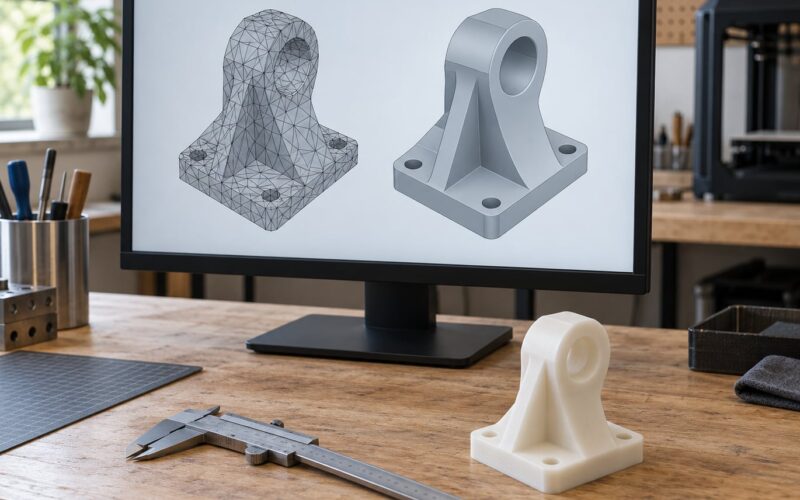
Both are mesh formats, which means neither one stores the true shape of your part. They store a tessellation: a curved surface approximated by thousands of flat triangles. Once you understand that, the rest of each format makes sense.
What is an STL file? STL means stereolithography
STL started life in 1987 at 3D Systems, the company behind the stereolithography process that cures liquid resin layer by layer. The name stuck and the format became the default export for 3D printing. The file is a bare list of triangles, each with three vertices and a surface normal, and that is the whole specification. There is no header for color, no unit field, no object names, no printer profile.
One thing almost nobody mentions: STL comes in two encodings. ASCII STL is a human-readable text file that starts with a line spelled “solid” and can be several times larger than the geometry needs. Binary STL is a compact 80-byte header plus 50 bytes per triangle. Modern slicers read both, and most exported files are binary.
What is a 3MF file? It stands for 3D Manufacturing Format
3MF was designed in the 2010s by a consortium that included Microsoft, HP, Autodesk and 3D Systems, and it is published as an open specification rather than owned by one company. A 3MF file is a ZIP archive. Inside it you find an XML manifest, one or more model parts holding the mesh, a thumbnail, and often texture images and a settings section.
Because the container is XML, a 3MF file can describe things an STL physically has no room for: which triangles belong to which object, what color each object is, which material it uses, what unit the coordinates are in, and what settings were used the last time you sliced it.
The practical result is that STL is a shape, and 3MF is a shape plus the project around it.
How Geometry and Surface Detail Differ
On pure geometry the two formats are equals, and this is the point that gets lost in a lot of comparisons. Both store the same flat triangles. A model exported to 3MF is not smoother, more accurate or more detailed than the same model exported to STL at the same tessellation settings. The faceting you see on a curved surface comes from chord tolerance and angular deviation in the CAD export, not from the container.
Where 3MF differs is everything wrapped around the triangles. Named objects, each with its own transform, so a three-part assembly keeps its relative placement. Per-object color and material channels. A units attribute. A settings section that records layer height, infill, supports and the machine you printed on last.
Both formats are non-parametric. You cannot go back into a 3MF and change a fillet radius the way you would in Fusion 360 or Blender’s parametric modifiers. A 3MF project file gives you a saved state, not an editable model history.
Both also need a watertight, manifold mesh for reliable printing. Whether the file that arrives is STL or 3MF, the repair tools in your slicer are the same ones, and a model with holes or flipped normals will fail to slice the same way in either format.
Color, Texture, and Multi-Material Support
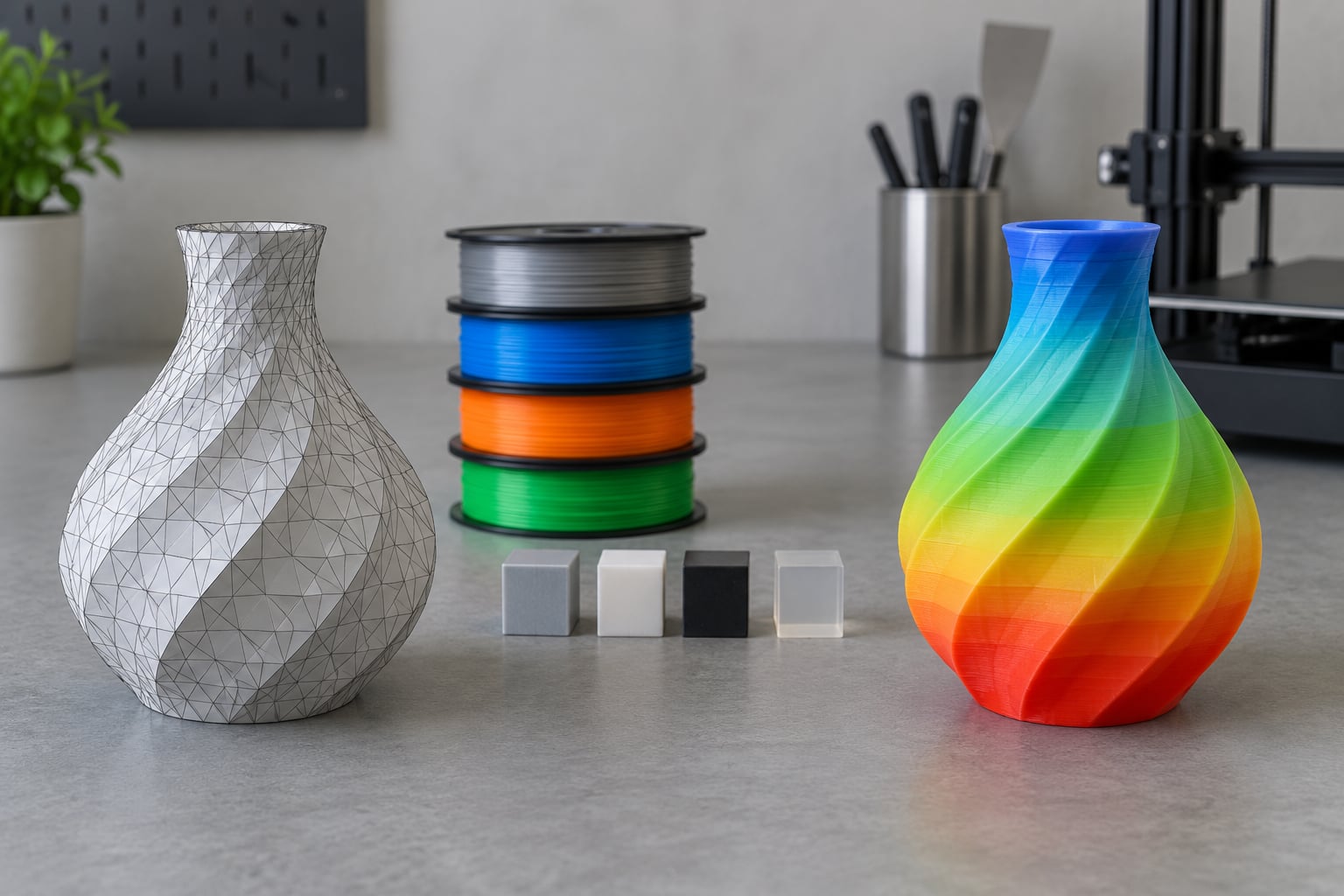
This is the clearest win for 3MF, and the reason it exists. A standard STL has nowhere to put color, so anyone who wants a colored print has to assign colors in the slicer after importing. That step is manual, it is not saved with the model, and anyone who downloads your file has to repeat it.
A 3MF stores color on the mesh itself, either as per-vertex color or as a material assigned to each object. The most reliable route is object-level material assignment: split the model into separate objects, assign each one a material, and let the slicer load those assignments. Per-vertex color works too, but it needs enough vertices spread across the surface for the color not to look smeared.
Two caveats worth knowing. First, color in the file only helps if your slicer honors it, and file menus have shifted over the years. In Cura, the option to load a 3MF as models only, without the surrounding project data, has become harder to find, which is exactly the complaint raised in a long-running Ultimaker GitHub issue. Second, having five color regions in a 3MF does not mean your printer can produce them. Multi-material output still depends on hardware: an AMS-style unit on a Bambu Lab or Prusa setup, tool-changing, or a full-color resin or PolyJet machine that mixes material in the print head.
So the honest framing is: 3MF carries the color plan, the hardware decides whether it happens.
STL vs 3MF File Format Differences in Practice
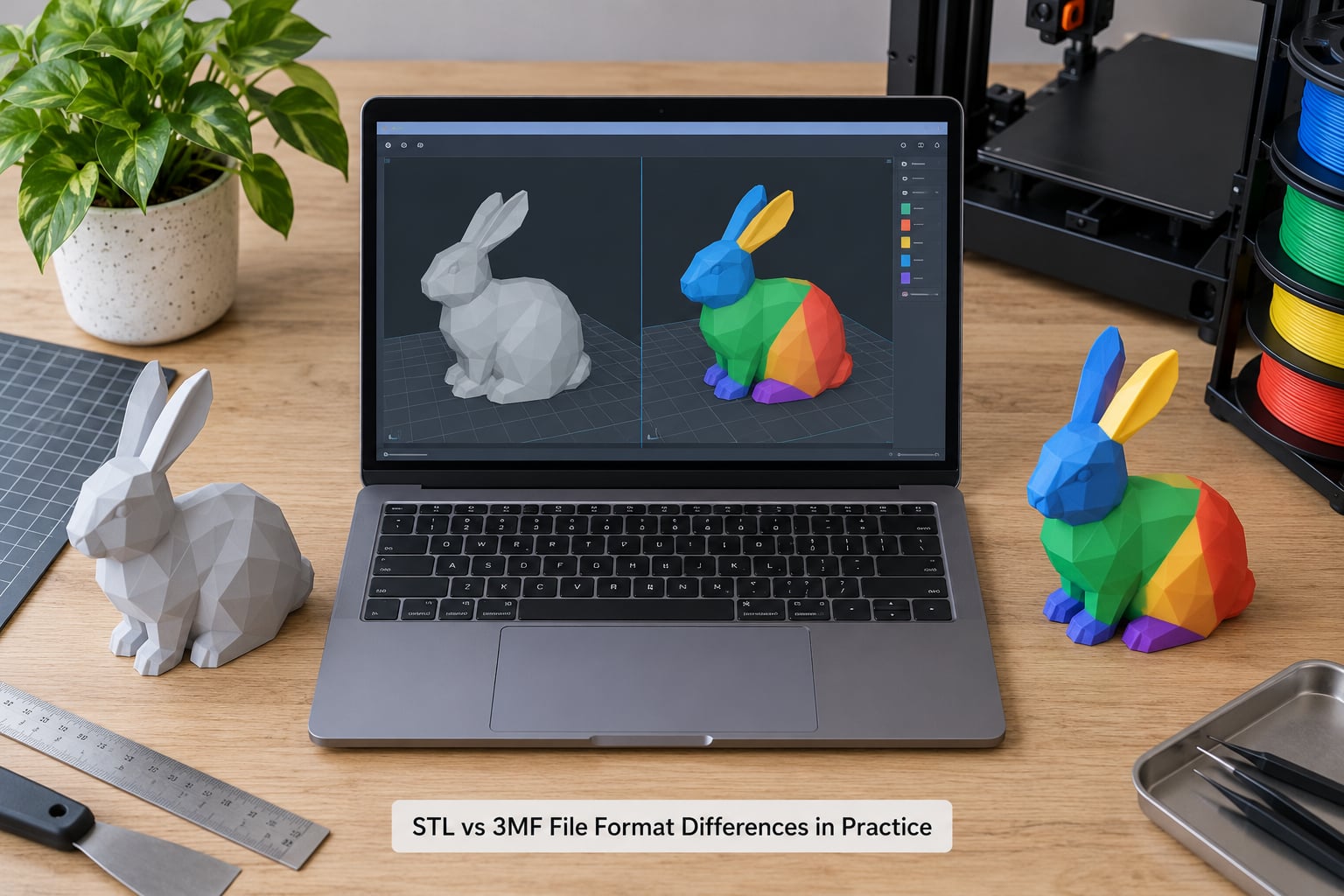
Here is a real workflow, start to finish, and where the formats diverge.
You model a bracket in Fusion 360 and export. As STL, you get a mesh sitting in whatever units the export settings produced, with no idea what layer height or infill the designer had in mind. You drop it into PrusaSlicer, set your own profile, slice, and print. Nothing breaks, and nothing carries over from the original design.
Export the same bracket as 3MF from the same Fusion 360 session, and the file can carry object names, the unit attribute, per-object material slots, and a settings section. Open it in PrusaSlicer and those values load alongside the geometry. Whether your slicer reads every one of them is the variable to watch.
This is where users hit the well-documented 3MF problems. PrusaSlicer uses .3mf as its own project format, so a Fusion 360 3MF export can trip mesh-error warnings there while the identical STL export loads without complaint. Users on the Prusa Forum and r/3Dprinting describe the same pattern: mesh errors on the 3MF, clean load on the STL. The fix is usually to export STL from Fusion 360, or to repair the mesh in the slicer first.
The other recurring issue is origin and placement. A 3MF preserves CAD coordinate origins, so print-in-place assemblies can arrive already positioned relative to a world origin you did not choose. Rotate one object in the slicer and the assembly breaks apart. Print-in-place users on these forums tend to prefer STL precisely for this reason, or they re-zero the model in the slicer before rotating anything.
And the question every thread asks: does the format change the finished print? No. At identical mesh, identical layer height, identical settings, the printed surface is the same. Members of the r/3Dprinting thread who switched formats for single-material FDM prints report no visible difference and no new problems. Quality is driven by mesh resolution, layer height, nozzle or resin, and cooling, not by the file wrapper.
File Size, Portability, and Software Compatibility
STL files are large because the format is repetitive. Every triangle is written out in full, with no shared vertices, so a 200k-triangle model repeats the same coordinates thousands of times. A 3MF describes the mesh in XML where vertices can be referenced and shared, then compresses the whole archive as a ZIP. In practice a 3MF of a complex assembly is often a fraction of the size of the matching STL.
The flip side is transparency. An STL is a plain file you can open in any text editor and read. A 3MF is an archive, so inspecting what is inside means unzipping it and opening the model XML by hand. That opacity is also a mild security consideration: a ZIP container can in principle carry files a slicer will not open, so treat a 3MF from an unknown source the way you would treat any unknown archive.
Here is the troubleshooting table the forums keep rebuilding by hand.
| Symptom | Where users see it | What to do |
|---|---|---|
| Mesh errors on a 3MF that is fine as STL | PrusaSlicer with Fusion 360 exports | Export STL instead, or repair the mesh before slicing |
| Parts land in the wrong place | Cura and other slicers with Fusion 360 3MF | Re-zero or center the model after import |
| Print settings vanish | Bambu Studio 3MF opened in OrcaSlicer or FlashForge | Re-apply the profile, or export from the slicer you will print in |
| File will not open at all | Anycubic Slicer Next dropped 3MF support | Use another slicer, or convert to STL |
| Modifiers missing or unconverted | PrusaSlicer files opened in OrcaSlicer | Re-create the modifiers in the slicer you own |
| Project data loads with the model | Cura, where load models only is buried | Expect the settings to come in too, and adjust after loading |
| Only some files in a batch import | Slicer importing a mixed folder of 3MFs | Convert the failures to STL, or re-export them one at a time |
| Empty layers appear | PrusaSlicer with some converted 3MFs | Check the model in a mesh tool, or fall back to OBJ or STL |
That last column is the honest caveat to any claim that 3MF is simply better. The format is more capable, and a meaningful share of slicer software still handles the extra payload inconsistently. What a 3MF contains depends on the program that exported it and the program that opens it.
Two other formats turn up in the same conversations. OBJ is an old mesh format that some users prefer because it is a different code path from STL and it can carry vertex colors, and it is where a PrusaSlicer user on the forums landed after hitting odd empty layers with 3MF. STEP is a completely different category: it is a B-Rep solid format defined in ISO 10303, which means it stores true surfaces and editable solid features, so it is the right choice for CNC work and design-for-manufacture review. GLB, from the glTF family, is for viewing rather than printing; it is compact, carries textures and materials, and shows up in browser and AR previews. If you want a broad comparison of STL, 3MF, OBJ and STEP, that is a separate question from this one.
Accuracy, Units, and Print Scaling
STL has no units. The coordinates in the file are just numbers, and every program that opens one assumes a scale. Usually the assumption is right. Sometimes it is not, and then a part designed at 100 mm arrives at the slicer as 2540 mm, which is the 25.4x error caused by a model exported in inches and read as millimeters. It is the single most common first-print surprise for beginners, and it has nothing to do with the format being STL.
3MF removes the ambiguity. The model part carries a unit attribute, and conforming readers scale the geometry to the scene unit rather than guessing. In practice that means a correctly exported 3MF shows the right size on the build plate more reliably than the same model as STL.
That reliability depends on the export, not on the format name. Check these four things before every slice:
- Measure the model in your slicer against a known dimension, not against the file.
- Look at the bounding box numbers in the preview, and compare them to your intent.
- Confirm the model sits on the build plate and within the printable volume.
- Run the mesh repair check once, whatever the format, and read the warnings.
One more accuracy point, since it is easy to conflate with units: accuracy is set at export. Chord tolerance controls how far a tessellated curve may sit from the true surface, and angular deviation controls how much the flat facets may tilt away from it. Rough values produce visible faceting in either format, and no container change will fix it.
Which Should You Choose?
Pick by what you are doing, not by which format is newer.
- Quick prototypes and single-color prints: STL. It opens everywhere, conversion risk is zero, and nothing is lost that you were using anyway.
- Sharing a model publicly: STL for a bare mesh, 3MF if you want the recipient to get your object layout and material plan. Offer both when you can.
- Multi-color or AMS printing: 3MF. It is the only one of the two that can carry the color assignment.
- Print-in-place assemblies: STL, unless you are prepared to re-zero the model. The 3MF coordinate origin behavior is the main source of pain here.
- Archiving a tuned project: 3MF exported from the slicer you actually use, saved alongside an STL of the raw mesh. Keep both, because the project file is only as portable as its software.
- Service bureau work: Ask first. Most bureaus accept STL, many accept 3MF, and 3D People and other bureaus treat the format as an upload decision rather than a quality one.
- Legacy or unusual software: STL. Any slicer that never shipped 3MF support will never gain it.
- Design review or CNC downstream: Neither. Use STEP, which is the only one of the family that keeps editable solid geometry.
If you read that list and feel like STL is the safer default for most people, you are right. 3MF earns its place in color work and archiving, and everywhere else it is a capable option rather than a necessary one.
How to Convert Between STL and 3MF
Conversion is easy. Knowing what you lose is the part that matters, so do it in this order.
To turn a 3MF into an STL, open the 3MF in your slicer, select the model, and use the export or save as mesh option with STL as the target. PrusaSlicer, Cura, OrcaSlicer and Bambu Studio all have this in their file menu under an export option rather than a plain save. In PrusaSlicer and OrcaSlicer it sits alongside the 3MF and OBJ save choices, and the same dialog is where you export STL from a 3MF project.
In Blender, import the mesh with the 3MF importer if your build has it, or extract the model XML from the archive first and import that. Blender is a reasonable stop for repairing geometry before you hand the STL on.
To go from STL to 3MF, load the STL into your slicer, set up the model, assign any colors or materials, then save the project as 3MF. Doing it through the slicer rather than a mesh converter means the settings section gets written too, which is usually the reason you wanted 3MF in the first place.
What you can lose going either way:
- Color and material assignments, if you convert with a plain mesh tool instead of a slicer.
- Units metadata, if the tool writes a bare mesh with no unit attribute.
- Object names and structure, when a converter flattens the scene into one shell.
- Print settings, in any conversion that does not go through the original slicer.
- Placement, since a converter may re-center the model on the build plate.
Verify after converting: measure the bounding box, check the object count, confirm the color or material list is populated, and slice a preview. A conversion that looks fine in a mesh viewer can still land at the wrong scale.
Frequently Asked Questions
Is 3MF always better than STL for 3D printing?
No. 3MF is more capable because it can carry color, materials, units, object structure and a saved print profile, and STL cannot. But that only helps when your slicer honors the metadata, and several slicers handle 3MF project files inconsistently. For single-color prints at settings you choose yourself, STL is entirely adequate.
Do all 3D printers support 3MF files?
The printers are rarely the limit, the software is. Printers driven by an external slicer will print whatever G-code that slicer produces, so most can print a 3MF indirectly. The exceptions are vendor ecosystems that open 3MF files directly or ship slicers with no 3MF support at all, and some closed platforms still only accept STL uploads.
Can a 3MF file contain colors and multiple materials?
Yes. A 3MF can hold per-vertex color, textures, and material assignments per object or per region, which is how multi-color and AMS workflows get their color plan from the file into the slicer. Whether the print actually comes out multi-color depends on your hardware: an AMS-style unit, tool changing, or a full-color resin or PolyJet machine.
Will converting an STL file to 3MF improve its print quality?
No, and it cannot. Quality is set by mesh resolution, layer height, temperature, cooling and material, not by the file wrapper. Converting adds metadata you can use, such as units and object layout, and for some slicers it also makes scaling more reliable. The printed surface looks the same either way at identical settings.
Should I save my final printing file as STL or 3MF?
Save both. Keep the STL as the portable bare mesh that opens in any slicer, and keep a 3MF exported from the slicer you tuned the model in, so the profile, supports and material assignments travel with it. If you must pick one, pick 3MF for color work and archiving, and STL for everything else.
Conclusion
Choose 3MF when the extra data matters to you, meaning multi-color prints, assemblies with fixed object placement, and archives of a tuned print project. Choose STL for everything else, because it opens in software that has not been updated in years and it never surprises you. If you want the widest coverage, save both and let the person on the other end pick.
Start by measuring your model in the slicer before your next print. Almost every format question gets smaller once you know your real dimensions.