If you have never modeled anything before, start in Tinkercad and print something this weekend. If you want to design functional parts that hold together under load, start in Fusion 360 instead. Both come from Autodesk, both are free for personal hobby use, and both will teach you real skills.
That is the honest answer to Tinkercad vs Fusion 360 for beginners, and it is not as close as most comparisons make it sound. Tinkercad is a shape assembler. Fusion 360 is a parametric CAD platform with CAM and simulation attached. Neither is a shortcut past the other, and the forum consensus is blunt: Tinkercad is probably the easiest program for 3D modeling, but also the least powerful.
Below I break both down the way I would explain it to someone sitting next to me at a makerspace table: what each one does, where each one falls apart, and how your first project should influence the choice. Licensing terms change, so confirm current details on Autodesk’s official product pages before you commit.
Table of Contents
- 1Tinkercad vs Fusion 360 for Beginners at a Glance
- 2Which Program Is Easier for a Beginner to Learn?
- 3Tinkercad vs Fusion 360 for Beginners: Modeling Capabilities
- 4How Each Program Handles 3D Printing
- 5Tinkercad vs Fusion 360 for Beginners: Desktop, Browser, and Mobile Access
- 6Which Has Better Technical Drawing and Engineering Tools?
- 7What Do Tinkercad and Fusion 360 Cost for Beginners?
- 8What Are the Main Drawbacks?
- 9Which Should You Choose?
- 10Frequently Asked Questions
- 11Is Tinkercad being discontinued, and should beginners avoid it?
- 12Is Fusion 360 too difficult for someone with no CAD experience?
- 13Can I use Tinkercad and Fusion 360 files with my 3D printer?
- 14Should I learn Tinkercad before moving to Fusion 360?
- 15Which program is better for designing functional mechanical parts?
- 16Conclusion
Tinkercad vs Fusion 360 for Beginners at a Glance
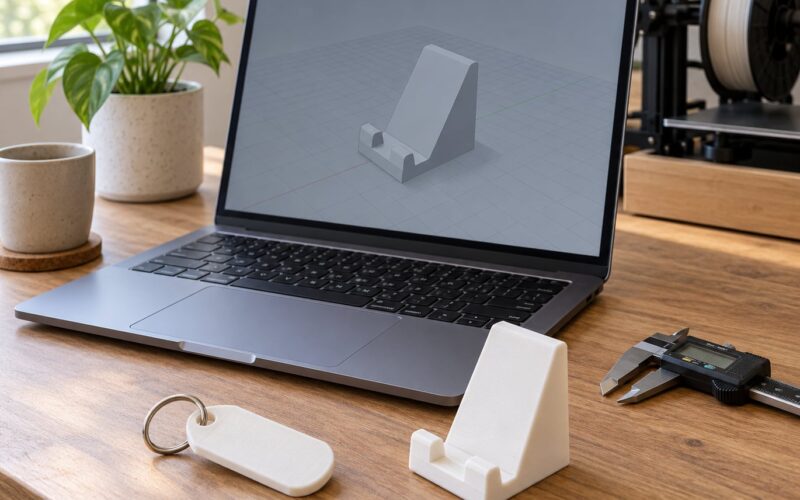
Should I use Tinkercad or Fusion 360? Use Tinkercad if your goal this month is a phone stand, a name tag or a box with a lid. Use Fusion 360 if your goal is a bracket, an enclosure or anything that needs to fit a real measurement. Both are free for personal use, so cost is rarely the deciding factor.
| Criterion | Tinkercad | Fusion 360 |
|---|---|---|
| Learning curve | Hours to first model | Weeks to first confident model |
| Interface | Browser tab, drag and drop | Desktop app, toolbars and panels |
| Modeling style | Boolean shapes, no parameters | Parametric, sketch-based, timeline |
| Assemblies | Grouped rigid shapes only | Real joints and mates |
| Technical drawings | Not supported | Drawing workspace with dimensions |
| 3D printing workflow | Export STL, or built-in slicer | Export STL, prepare mesh manually |
| Collaboration | Share a link, simple version history | Branch and merge, version control |
| Platform | Web, desktop, tablet app | Desktop, Windows and macOS |
| Personal hobby use | Free, no account tier needed | Free personal use license |
| Best fit | First-timers, classrooms, quick models | Engineering students, functional parts |
Which Program Is Easier for a Beginner to Learn?
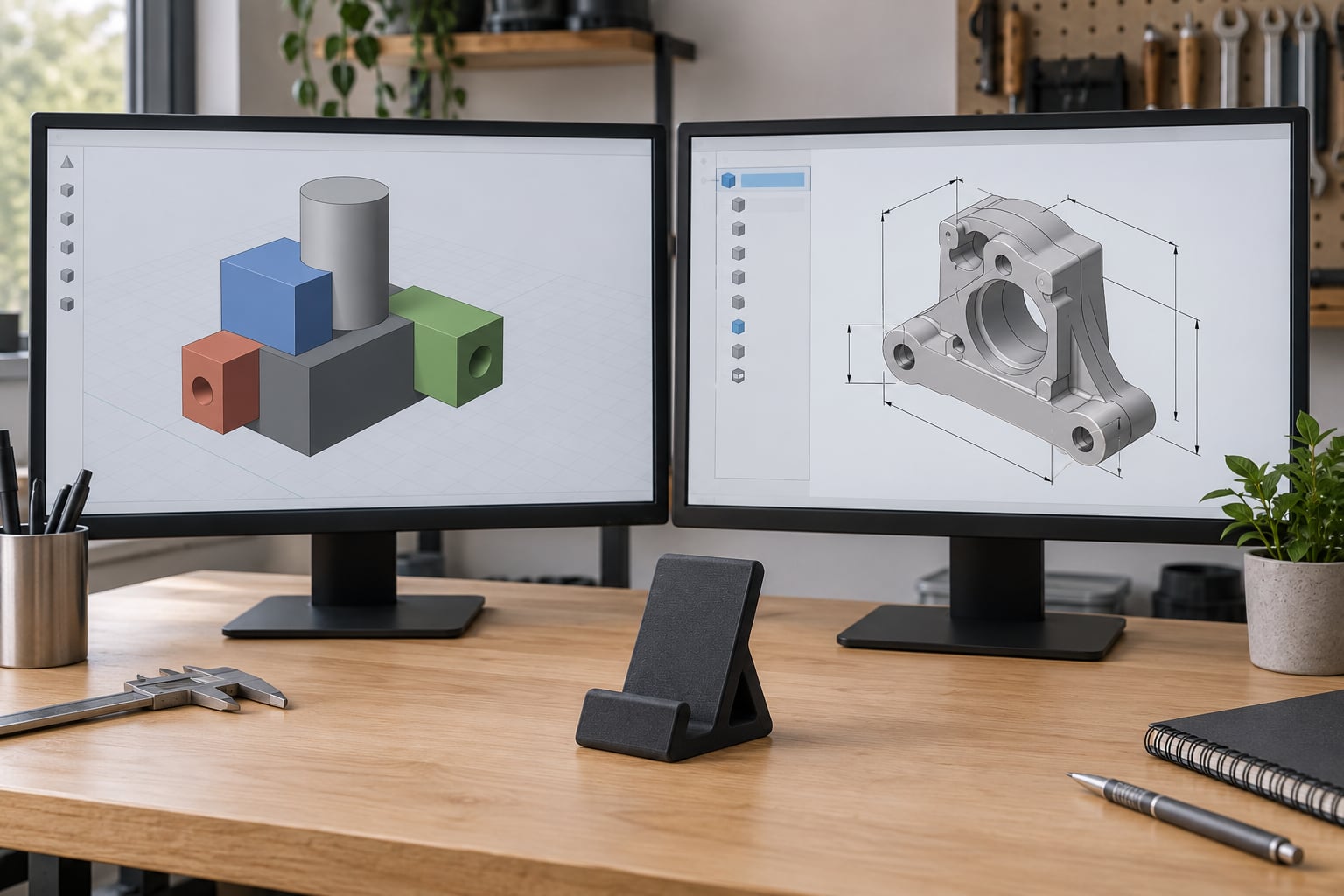
Tinkercad is easier, and it is not particularly close. You drag a shape onto a workplane, resize it with the handles, and combine shapes with Group, Hole or Shape Generator. There are no dimensions to type, no feature history to understand and nothing to break.
Fusion 360 asks you to think like an engineer from the first click. You sketch a profile, constrain it so it stays put, extrude it, then find that feature in the timeline to change it later. A forum poster put it well: at the learning stage, the tutorials and their presenters matter more than the program itself. That is doubly true in Fusion 360.
Tinkercad vs Fusion 360 for Beginners: Modeling Capabilities
Basic shape creation is where Tinkercad wins on speed and Fusion 360 wins on control. In Tinkercad a name tag is a plate, two small cylinders subtracted as holes, and a rounded corner, done in about five minutes. In Fusion 360 the same tag takes longer, but the corner radius stays editable and the hole diameter is a named parameter you can change in seconds.
Assemblies separate them hard. Tinkercad groups shapes into one rigid object, and a hinge or a sliding fit is not something the tool models for you. Fusion 360 builds genuine assemblies with joints and mates, which is what makes it the choice for anything mechanical.
Here is a project that shows each one off. Make a wall-mounted phone stand: Tinkercad wins, because the part is decorative, the geometry is simple, and you will have it printing the same evening. Make a camera mount with a 6 mm plate, two slotted holes and a tilt joint: Fusion 360 wins, because you need the slots to be real slots and the tilt angle to be adjustable.
Organic shapes and mesh editing tilt the other way. Tinkercad can warp shapes along a curve for decorative forms, and Blender-style mesh sculpting is not something either Autodesk tool is really built for.
How Each Program Handles 3D Printing
For a beginner, Tinkercad has the shortest path from idea to filament. It exports STL directly, and it also includes a built-in slicing view where you set layer height, infill and supports before downloading the file. That is a genuine advantage when you have never opened a slicer.
Fusion 360 produces better geometry, and then hands you a mesh. You export STL and take it into your slicer yourself. For most makers this is not a problem. Cura, PrusaSlicer and Bambu Studio all import Fusion 360 STL output without complaint, and the higher-quality mesh means cleaner perimeters on thin walls.
Where it matters is supports and orientation. Fusion 360’s Prepare workspace has automatic support generation and orientation tools for additive manufacturing. Tinkercad handles supports as a simple checkbox, which is fine for flat objects and frustrating for overhangs. Most beginners discover this the hard way, on their first failed print.
Tinkercad vs Fusion 360 for Beginners: Desktop, Browser, and Mobile Access
Tinkercad runs in a browser with an Autodesk account, and Autodesk also ships desktop and tablet apps that mirror the web tool. Nothing to install means nothing to configure, which is why classrooms and libraries default to it.
Fusion 360 is a desktop application for Windows and macOS and needs an account to activate. There is no browser editor for full Fusion 360 work. If your only computer is a Chromebook or an old laptop, that is a real constraint.
Menus and feature names shift between releases in both tools, so if a tutorial is more than a year old, expect the button to have moved. Check the current in-app help rather than trusting an old video’s screen.
Which Has Better Technical Drawing and Engineering Tools?
Fusion 360 wins this category outright, and it is not close. It has a dedicated drawing workspace where you place views, add dimensions, set tolerances and generate a title block. Sketch constraints let you change one number and watch the whole model update. Sheet metal rules, standard fasteners and a real component library all live here.
Tinkercad has no drawing output at all. For a simple visual plan, a screenshot or a dimensioned note in chat does the job. If you need documentation a machinist or a fabricator could work from, Tinkercad cannot produce it.
File formats follow the same split. Both export STL and OBJ. Fusion 360 additionally exports STEP and IGES, which preserve precise geometry and are the formats engineers exchange. A Tinkercad file stays a mesh, which is exactly why moving up later feels like starting over.
What Do Tinkercad and Fusion 360 Cost for Beginners?
For a learner, both tools cost nothing to start. Tinkercad is free across its personal-use features with no tier to choose between. Fusion 360 offers free access for personal hobby use and for students and educators through educational programs.
The dividing line is commercial activity. Fusion 360’s personal-use license is for non-commercial work, so if you plan to sell printed parts or take freelance CAD work, you need a paid tier. Autodesk’s exact terms, current pricing and upgrade structure change, so read the official Autodesk product pages before you start selling anything from a model you made on a hobby license.
The other cost is time, and it is the one beginners underestimate. Fusion 360 takes considerably more hours before you are productive in it. Factor that in before deciding your laptop cannot handle it.
What Are the Main Drawbacks?
Tinkercad’s ceiling is technical, not cosmetic. Shapes snap to the workplane on their own, which is helpful once and maddening when you want an angled part. There is no history tree, so moving a hole means deleting and rebuilding. Dimensions are not named, so a part with nine identical holes is nine separate edits rather than one.
Fusion 360’s drawbacks are about load. The interface opens with toolbars, panels and tooltips that beginners describe as overwhelming, and one beginner with learning difficulties simply found it too much. Feature complexity is the other issue: generative design, sheet metal rules and simulation are there whether you need them or not.
Both tools also share a habit worth naming. On the gardenrails forum, users note that models are achievable in Tinkercad with some tinkering, and that chopping up an existing model is far easier in Fusion 360. Neither program prints for you. Bad geometry comes out of both.
Which Should You Choose?
Pick Tinkercad if you are on your first model, teaching a class, making decorative objects, name tags, keyrings, organizers or cosplay props, or if you just want to see a physical result this weekend. Pick Fusion 360 if you are an engineering student, designing mechanical parts, electronics enclosures, jigs or fixtures, or if paid CAD work is on the horizon.
A short decision checklist: if you cannot state the measurements your part must hit, use Tinkercad. If you can, use Fusion 360. If your computer is a Chromebook, use Tinkercad. If you plan to sell prints, use Fusion 360 with the correct license. If you want the skill that transfers to a job, use Fusion 360.
There is a middle path, and maker labs have used it for years: teach Tinkercad first because the concepts transfer, then bridge students to Fusion 360 so they can see what professional design software looks like. You lose very little by starting small and moving up when a project demands it.
Frequently Asked Questions
Is Tinkercad being discontinued, and should beginners avoid it?
Tinkercad is still an active Autodesk product and remains free for personal use, so there is no reason for a beginner to avoid it. What has changed is where the industry is heading: professional work has moved toward parametric tools. Starting in Tinkercad is still a valid on-ramp, as long as you move on when your projects need real dimensions and editable features.
Is Fusion 360 too difficult for someone with no CAD experience?
It is harder, but not out of reach. Most beginners who persist through the first few weeks report it becomes predictable, because every feature is recorded in a timeline you can go back and edit. The interface is busy at the start and that is where people quit. Follow one structured tutorial track rather than free-browsing, and you will be modeling functional parts within a month.
Can I use Tinkercad and Fusion 360 files with my 3D printer?
Yes. Both export STL, which is what nearly every slicer expects, so Cura, PrusaSlicer and Bambu Studio will open either file. The difference is fidelity: a Fusion 360 mesh is usually cleaner, which means better perimeters on thin parts. Tinkercad also offers a built-in slicing view, but you can slice its STL elsewhere just as easily.
Should I learn Tinkercad before moving to Fusion 360?
Often yes, because Tinkercad teaches shape, proportion and spatial thinking in an afternoon. Fusion 360 then asks you to add sketches, constraints and feature history on top. You can certainly start directly in Fusion 360 if your goal is engineering work, since plenty of beginners do. Just budget extra hours for the interface and expect a slower first month.
Which program is better for designing functional mechanical parts?
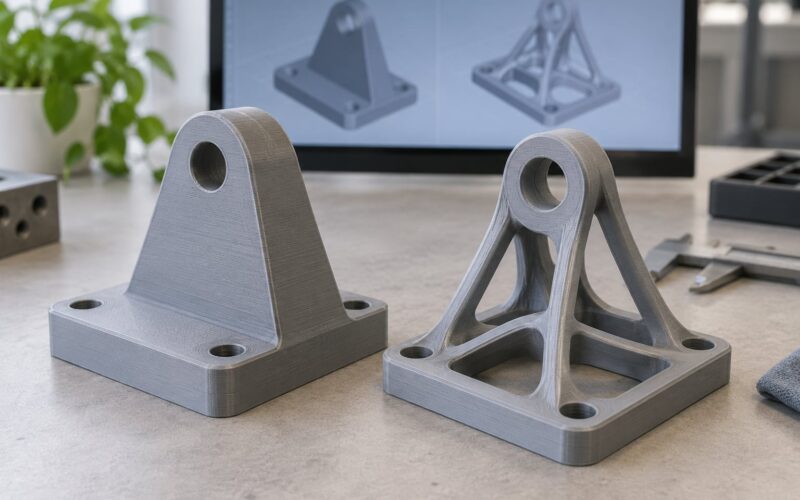
Fusion 360, without much debate. Functional parts need named dimensions, adjustable parameters, real assemblies with mates, and STEP export so a machinist can work from the file. Tinkercad can produce a bracket that works, but the shapes cannot be edited afterwards without rebuilding, which becomes painful the moment a measurement changes.
Conclusion
Open Tinkercad, make a phone stand, print it this weekend. That single successful print teaches you more than three hours of reading. When the day comes that you need a hole to move, a dimension to hold and a part that survives being bolted down, move the same mindset into Fusion 360. For anyone weighing Tinkercad vs Fusion 360 for beginners, the order of that journey is the decision, and getting a physical object in your hand first is what keeps people going.